
For real-time audio processing, it is necessary to communicate to your audio thread in such a way that the audio thread can never be blocked. Audio threads are hard-real-time: any delays will lead to loud pops/crackles/echoes. This is proper engineering! Fun!
So here’s my take on a simple C Lockless Single-Producer Single-Consumer queue that can be used for this (and other) applications.
This algorithm was written from a combination of reading existing C++ SPSC libraries (I couldn’t find any C ones), Wikipedia, the C atomics documentation, and Gemini. Even though Gemini helped, this was by no means remotely vibe coded, as will be explained later under the ‘heads or tails’ heading. Performance is good but note that there are faster options out there.
Have a look at the github repo: github.com/chrishulbert/spsc.
Theory
Basically we’re creating a ‘circular buffer’ where the reader chases the writer. The writer puts an item in the buffer if there’s a vacant position, and the reader consumes items from the buffer.
Seriously, go read the Wikipedia article on circular buffers, it’s surprisingly clear for a Wiki article, and does a better job than I at explaining the idea.
I’d also recommend skim-reading the references at the end of this article to understand the theory.
Heads or Tails?
These queues are often referred to as having a head and a tail. But there doesn’t seem to be a consensus as to whether you add to the tail and read from the head, or vice-versa. So there’s a terminology problem:
- Linux says you write (insert) to the head: Queue.
- Rust says you write (push) to the tail (back): VecDeque.
- C++ STL says you write (push) to the tail (back): std::queue.
- Java says you write (insert) at the tail: java.util.Queue.
In everday life, it is usual terminology that if a person is ‘at the head of the queue at the bank’ that they will be served next. Being served is analogous to being ‘read’ in our context. I suspect Linux is the one being unintuitive here.
Anyway, this is more important than a tomahto-tomayto thing, because this confusion makes it very difficult to use AI to make suggestions around queuing code, because half its training data treats head indices as writers, and the other half of its data treats heads as readers, so it tends to mix them up in code. AI aside, it makes it difficult to understand when reading examples!
Wikipedia avoids this confusion entirely by referring to them as the ‘write pointer’ and ‘read pointer’, so I’ll follow that terminology to make things unambiguous.
Circular representation in memory
Now since RAM isn’t circular, how do we represent this ring buffer?
It is a fixed-size array, with an index for where to write to, and an index for where to read from.
Since it is represented as a fixed-size array, this means that the buffer can be filled, and writes can fail. Since the writer is often the non-real-time side of the equation, if writes must not fail, some form of slower dynamic array could be used to keep track and retry later. But then you have to worry about “backpressure” when the consumer cannot keep up… 😀
It looks like this initially, for a size-4 queue. When the indices are equal (not necessarily 0, just equal) as follows, the queue is considered to be empty:
  ┌───┐
0 │   │ ← Reader index, Writer index
  ├───┤
1 │   │
  ├───┤
2 │   │
  ├───┤
3 │   │
  └───┘
To add item A, it is written at the current writer index, then the writer is incremented:
  ┌───┐
0 │ A │ ← Reader
  ├───┤
1 │   │ ← Writer
  ├───┤
2 │   │
  ├───┤
3 │   │
  └───┘
Then we add item B:
  ┌───┐
0 │ A │ ← Reader
  ├───┤
1 │ B │
  ├───┤
2 │   │ ← Writer
  ├───┤
3 │   │
  └───┘
Then we read. Since the reader index != writer, it considers it may read an item. It reads from the read index position, then increments the index:
  ┌───┐
0 │   │ A is read
  ├───┤
1 │ B │ ← Reader
  ├───┤
2 │   │ ← Writer
  ├───┤
3 │   │
  └───┘
We can read again, because the indices are unequal:
  ┌───┐
0 │   │
  ├───┤
1 │   │ B is read
  ├───┤
2 │   │ ← Reader, Writer
  ├───┤
3 │   │
  └───┘
There is nothing left to read, because the Reader == Writer:
  ┌───┐
0 │   │
  ├───┤
1 │   │
  ├───┤
2 │   │ ← Reader, Writer
  ├───┤
3 │   │
  └───┘
Now let’s add a few more, so we can see how it wraps around in a circular fashion. Let’s add X:
  ┌───┐
0 │   │
  ├───┤
1 │   │
  ├───┤
2 │ X │ ← Reader
  ├───┤
3 │   │ ← Writer
  └───┘
Now we add Y. Notice that the writer wraps around (circles) to index 0:
  ┌───┐
0 │   │ ← Writer
  ├───┤
1 │   │
  ├───┤
2 │ X │ ← Reader
  ├───┤
3 │ Y │
  └───┘
Now we add Z:
  ┌───┐
0 │ Z │
  ├───┤
1 │   │ ← Writer
  ├───┤
2 │ X │ ← Reader
  ├───┤
3 │ Y │
  └───┘
Even though the array above has an empty element, this queue is considered ‘full’ because (Writer + 1) % Length == Reader.
This ‘wasted’ element is a simple common technique to know when the queue is full, because if that extra element was filled, then Writer == Reader, which is the trigger for being considered empty, and another variable would be needed to disambiguate empty vs full.
To the best of my knowledge, this ‘wasted’ element isn’t reserved for multithreading safety, as the memory barriers (discussed later) solve that issue, it is just the way to determine full vs empty.
Atomics
Now: How is this to be made thread-safe?
Atomics are used for synchronising the threads in a lockless way, taking advantage of hardware CPU features to ensure neither thread will have to wait. In particular, this queue uses “release-acquire ordering”. More about atomics and release-acquire ordering can be read here.
In short:
- An
atomic_size_t foo;variable exists. - Values are ‘acquired’/loaded/read from this.
- Values are ‘released’/stored/written to this.
- When this acquire/release pattern is followed, the CPU guarantees: Any writes to other variables above the ‘release’ line of code will be visible to the ‘acquiring’ (reading) thread, they won’t be partially written or reordered by Out-Of-Order CPU optimisation or anything.
Thread Safety
Now we’re familiar with Atomics, how do they apply here?
- A new entry is stored before the incremented write index is ‘released’.
- The reader ‘acquires’ the write index, guaranteeing the data for the new entry is in a consistent state, because the entry was stored before the ‘release’.
- The reader reads all the entries, then ‘releases’ the incremented read index.
- The writer ‘acquires’ the read index, guaranteeing the reader has finished reading any queue entries, because the queue reading was completed before the ‘release’.
Code
Code is available at github.com/chrishulbert/spsc with benchmarking; however the important parts are here:
#include <stdatomic.h>

// You may want to have a 'type' for your queue entries:
typedef enum {
    QUEUE_ENTRY_TYPE_PLAY,
    QUEUE_ENTRY_TYPE_STOP,
} QueueEntryType;

// Put whatever you want to have in your queue entries here:
typedef struct {
    QueueEntryType type;
    int a;
    int b;
    int c;
} QueueEntry;

// If the queue size is a power of two eg 16,
// the '%' calculations later will be optimised to '& 0xF'.
#define QUEUE_SIZE 16

// This is the SPSC queue:
static struct {
    // Producer's index (writer thread, perhaps the game):
    atomic_size_t writeIndex;

    // Since the producer is the only thread that updates writeIndex,
    // it can use this 'mirror' as its source of truth,
    // thus no synchronisation is needed when reading.
    size_t writeIndexMirror;

    // Consumer's index (reader thread, perhaps the audio thread).
    atomic_size_t readIndex;

    // Since the consumer is the only thread that updates readIndex,
    // it can use this 'mirror' as the source of truth,
    // thus no synchronisation is needed when reading.
    size_t readIndexMirror;

    // The ring buffer.
    QueueEntry buffer[QUEUE_SIZE];
} queue;

// Write an item to the queue.
// To be called from the producer thread.
// Returns true on success.
bool queue_write(QueueEntry entry) {
    // Since only this thread updates the write index, use a non-atomic
    // mirror for a potentially-quicker read:
    size_t writeIndex = queue.writeIndexMirror;
    size_t nextWriteIndex = (writeIndex + 1) % QUEUE_SIZE;

    // Acquire the read index, so that any updates the reader made are visible.
    // Not that the reader makes any changes to the buffer, though.
    // Open to feedback here if this is necessary.
    size_t readIndex = atomic_load_explicit(
                           &queue.readIndex,
                           memory_order_acquire);

    // Check if queue is full.
    if (nextWriteIndex == readIndex) {
        return false; // Full!
    }

    // Store this entry in the queue.
    queue.buffer[writeIndex] = entry;

    // Use 'release' to ensure the entry in the buffer is visible
    // to the reader after it 'acquires' the write index.
    atomic_store_explicit(&queue.writeIndex, nextWriteIndex, memory_order_release);

    // Use this mirror as the source of truth, so it can be read next time
    // without needing synchronisation, since only this thread uses it.
    queue.writeIndexMirror = nextWriteIndex;

    return true; // Success, there was room!
}

// Read items from the queue, handling each one.
// To be called from the consumer thread.
void queue_read() {
    size_t readIndex = queue.readIndexMirror;

    // Acquire the write index from the writer thread.
    // Once acquired, any buffer updates made before updating the
    // write index will be visible to this thread.
    size_t writeIndex = atomic_load_explicit(
                            &queue.writeIndex,
                            memory_order_acquire);

    // Loop through all entries:
    while (readIndex != writeIndex) {
        // Get this entry:
        QueueEntry* entry = &queue.buffer[readIndex];

        // Increment the read index, wrapping to 0 at the end of the queue buffer:
        readIndex = (readIndex + 1) % QUEUE_SIZE;

        // Deal with this entry:
        switch (entry->type) {
            case QUEUE_ENTRY_TYPE_PLAY:
                // Do something.
                break;

            case QUEUE_ENTRY_TYPE_STOP:
                // Do something.
                break;
        }
    }

    // Release the read index so the producer knows space has been cleared in
    // the buffer that it can use to store incoming entries:
    atomic_store_explicit(&queue.readIndex, readIndex, memory_order_release);

    queue.readIndexMirror = readIndex;
}
Benchmark
In my testing on a base model M4 Macbook Air:
Speed (lower is better): 14.886 nanos per entry
Throughput (higher is better): 67179 ops / millisecond
This is about 1/5th as fast as the 362Kops/sec that SPSCQueue achieves. I’m not sure why the speed difference? Perhaps because I’m running on macOS. Nevertheless, this is plenty fast enough for eg audio threads.
References
- Wikipedia circular buffer
- Linux Queue.
- Rust VecDeque.
- C++ STL std::queue.
- Brickwarrior’s audio mixer
- Gemini
Thanks for reading, I pinky promise this was written by a human, not AI, hope you found this fascinating, at least a tiny bit, God bless!
Commander Keen 4-6 file formats 20 Dec, 2025
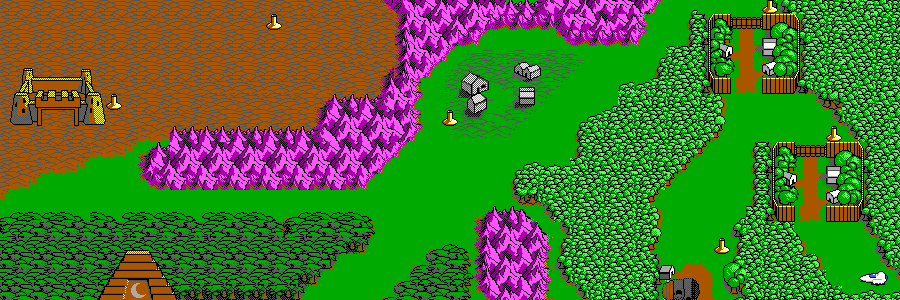
Recently I made Dopefish Decoder, a Rust tool for dumping the graphics from a very old-school Id software game: Commander Keen 4-6. It was a bit of work (fun work though) combining information from various sources to figure out how to read it all, so here’s the formats in rough EBNF! Further explanations are afterwards for the more complex elements.
Files
- Graphics:
- graph_head
- graph_dict
- egagraph
- Maps:
- map_head
- gamemaps
Non-file files
The map_head/graph_head/graph_dict “files” are actually present inside the game executable. Having said that, in many mods they are their own separate files. To get them, the executable first needs to be decompressed first, then these offsets used to extract them.
EBNF
// All multi-byte ints are little-endian.

graph_head = { graph offset }, graph length
graph length = 3 byte int // Matches length of egagraph file.
graph offset = 3 byte int

graph_dict = { huffman node }
huffman node = node side, node side // Left, right.
node side = node value, node type
node value = byte
node type = leaf | node // Byte: 0 = leaf, else = node.

egagraph = { chunk }
egagraph = unmasked picture table chunk with header,
    masked picture table chunk with header,
    sprite table chunk with header,
    font a chunk with header,
    font b chunk with header,
    font c chunk with header,
    { unmasked picture chunk with header }, // Count from unmasked picture table.
    { masked picture chunk with header }, // Count from masked picture table.
    { sprite chunk with header }, // Count from sprite table.
    unmasked 8x8 tiles chunk without header, // One chunk for all tiles.
    masked 8x8 tiles chunk without header, // One chunk for all tiles.
    { unmasked 16x16 tile chunk without header },
    { masked 16x16 tile chunk without header },
    { text etc }
chunk without header = huffman encoded chunk
chunk with header = chunk decompressed length, huffman encoded chunk
chunk decompressed length = 4 byte int

picture table = { picture table entry }
picture table entry = width_pixels_divided_by_8, height_pixels
width_pixels_divided_by_8 = 2 byte int
height_pixels = 2 byte int

sprite table = { sprite table entry } // 18 bytes each.
sprite table entry = width_div_by_8, // All are 2 byte ints.
    height,
    x offset,
    y offset,
    clip left,
    clip top,
    clip right,
    clip bottom,
    shifts

image = picture | tile | sprite
unmasked image = red plane, green plane, blue plane, intensity plane
masked image = red plane, green plane, blue plane, intensity plane, mask plane

map_head = rlew key, { map header offset }
rlew key = 2 bytes
map header offset = 4 byte int // 0 means no map in this slot.

gamemaps = "TED5v1.0", { map }
map = map planes, map header
map header = background plane offset, // 38 bytes.
    foreground plane offset,
    sprite plane offset,
    background plane length,
    foreground plane length,
    sprite plane length,
    tile count width,
    tile count height,
    map name
plane offset = 4 byte int
plane length = 2 byte int
tile count = 2 byte int
map name = 16 bytes asciiz
map planes = background carmackized plane,
    foreground carmackized plane,
    sprite carmackized plane
carmackized plane = carmackized decompressed length, carmackized data
carmackized decompressed length = 2 byte int
carmackized data = carmack compressed(rlew plane)
rlew plane = rlew decompresed length, rlew data
rlew decompressed length = 2 byte int
rlew data = rlew compressed(decompressed plane)
decompressed plane = { map plane row }
map plane row = { map plane element }
map plane element = 2 byte int
Image planes
- Images are stored in EGA planes.
- Data is one whole-image plane, then the next plane, and so on.
- Thus a certain pixel is represented 4-5 times across the data.
- Masked image planes: RGBIM.
- Red, Green, Blue, Intensity, Mask.
- Unmasked image planes: RGBI.
- When the mask bit = 1, it is a transparent pixel.
- Each pixel in a plane is represented by 1 bit.
- Inside each byte, pixels are left->right in big-endian order, 0x80 being leftmost.
- All widths are multiples of 8 so you don’t have to worry about rows starting mid-byte.
Map elements
- Map plane elements are ints representing which tile is displayed at that position.
- Background plane corresponds to the unmasked tiles.
- Foreground plane corresponds to the masked tiles.
- Foreground plane elements are not always present. 0 means no element here. Which means that to represent the first masked tile, the value is 1. This means that you -1 the value to get the tile index.
- Background plane always has an element, so the above -1 does not apply.
RLEW / Huffman / Carmackization
These compression techniques are big topics, far too complex for EBNF, and out of scope for an article like this.
They are are probably best described in code, which also has links to further reading. Hopefully the following code is readable enough to communicate the how-to:
Summary
I know this is the most random topic imaginable. Still, thanks for reading, I pinky promise this was written by a human, not AI, hope you found this fascinating if not useful, at least a tiny bit, God bless!
Cloudflare Rust Analysis 5 Dec, 2025
A few weeks ago, there was a huge Cloudflare outage that knocked out half the internet for a while. As someone who has written a fair bit of Rust in my spare time (23KLOC according to cloc over the last few years), I couldn’t resist the urge to add some constructive thoughts to the discussion around the Rust code that was identified for the outage.
And I’m not going full Rust-Evangelism-Strike-Force here, as my pro-Swift conclusion will attest. Basically I’d just like to take this outage as an opportunity to recommend a couple tricks for writing safer Rust code.
The culprit
So, here’s the culprit according to Cloudflare’s postmortem:
pub fn fetch_features(
        &mut self,
        input: &dyn BotsInput,
        features: &mut Features,
) -> Result<(), (ErrorFlags, i32)> {
    features.checksum &= 0xffff_ffff_0000_0000;
    features.checksum |= u64::from(self.config.checksum);
    let (feature_values, _) = features
        .append_with_names(&self.config.feature_names)
        .unwrap();
    ...
}
Apparently it processes new configuration, and crashed at the unwrap because configuration with too many features was passed in.
Code Review
Keep in mind that I’m not seeing the greater context of this function, so the following may be affected by that, but here are my thoughts re the above code:
- It returns a Result, with nothing for success case, and a combo of ErrorFlags and i32 for the failure case.
- The presence of the
&dynfor input indicates this uses dynamic dispatch, which means this isn’t intended as high-performance code. Which makes sense if this is just for loading configuration. Given that, they could have simply used anyhow’s all-purpose Result to make their lives simpler instead of this complex tuple for the error generic. unwrap()is called. This is the big red flag, and something that should only generally be done in code that you are happy to have panic eg command line utilities, but less so for services. Swift’s equivalent is the force-unwrap operator!. When Swift was new, it was explained that the ! was chosen because it signifies danger, and stands out like a sore thumb in code reviews to encourage thorough examination. Rust’sunwrapisn’t as obvious at review time, and thus can sneak through unnoticed.- Since we’re already in a function that returns Result, it would be more idiomatic to use
?after the call toappend_with_names, so that this function would hot-potato the error to the caller, instead of panicing. - If
append_with_namesreturns an Option not a Result,ok_or(..)?would be a tidy option.
Alternative
Here I’ve changed the fetch_features function to be safer, with a couple options for how to gracefully handle this if append_with_names returns either a Result or an Option (it isn’t clear which it is from Cloudflare’s snippet, so I’ve done both). Note that I’ve also added some boilerplate around all this to keep the fetch_features code as similar as possible, but also commented out some stuff that’s less relevant.
fn main() {
    let mut fetcher = Fetcher::new();
    let mut features = Features::new();
    if let Err(e) = fetcher.fetch_features(&mut features) {
        // ... Gracefully handle the error here without panicing ...
        eprintln!("Error gracefully handled: {:#?}", e);
        return
    }
}

enum FeatureName {
    Foo,
    Bar,
}

struct Fetcher {
    feature_names: Vec<FeatureName>,
}

impl Fetcher {
    fn new() -> Self {
        Fetcher { feature_names: vec![] }
    }

    // This is the function Cloudflare said caused the outage:
    fn fetch_features(
        &mut self,
        // input: &dyn BotsInput,
        features: &mut Features,
    ) -> Result<(), (ErrorFlags, i32)> {
        // features.checksum &= 0xffff_ffff_0000_0000;
        // features.checksum |= u64::from(self.config.checksum);

        // If append_with_names returns a Result,
        // the question mark operator is safer than unwrap:
        let (feature_values, _) = features
            .append_with_names_result(&self.feature_names)?;

        // If append_with_names returns Option,
        // ok_or converts to a result, which forces you to be
        // explicit about what error is relevant,
        // which is then safely unwrapped using the question mark operator.
        let (feature_values, _) = features
            .append_with_names_option(&self.feature_names)
            .ok_or((ErrorFlags::AppendWithNamesFailed, -1))?;

        Ok(())
    }
}

#[derive(Debug)]
enum ErrorFlags {
    AppendWithNamesFailed,
    TooManyFeatures,
}

struct Features {
}

impl Features {
    fn new() -> Self {
        Features {}
    }

    // This is for if it returns a Result:
    fn append_with_names_result(
        &mut self,
        names: &[FeatureName],
    ) -> Result<(i32, i32), (ErrorFlags, i32)> {
        if names.len() > 200 { // Config is too big!
            Err((ErrorFlags::TooManyFeatures, -1))
        } else {
            Ok((42, 42))
        }
    }

    // This is for if it returns an Option:
    fn append_with_names_option(
        &mut self,
        names: &[FeatureName],
    ) -> Option<(i32, i32)> {
        if names.len() > 200 { // Config is too big!
            None
        } else {
            Some((42, 42))
        }
    }
}
Feel free to paste this into the Rust Playground and see if you have better suggestions :)
Suggestions
- Instead of unwrap, the
?operator is a great option, particularly if you are already in a function that returns a Result, so please take advantage of such a situation. ok_oris a great way to safely unwrap Options inside a Result function. If forces you to think about ‘what error should I return if there’s no value here?’.- Consider Swift! The exclamation point operator is a great way of drawing attention to danger in a code review, which is a fantastic piece of language ergonomics.
Summary
If anyone from Cloudflare is reading this, I hope this critique does not come across as unkind, much of my code is not amazingly bulletproof either! And kudos to Cloudflare for allowing us to see some of their code in the postmortem :)
Thanks for reading, I pinky promise this was written by a human, not AI, hope you found this useful, at least a tiny bit, God bless!
You can see older posts in the right panel, under 'archive'.
Archive
Lockless FIFO SPSC (Single Producer Single Consumer) Queue in C 13 May 2026
Commander Keen 4-6 file formats 20 Dec 2025
Cloudflare Rust Analysis 5 Dec 2025
Rust Compilation: Sequoia vs Tahoe 4 Dec 2025
Better React Native devex through Expo Go 5 Sep 2025
The Maths of FM Synthesis 9 Oct 2024
Neural Networks from scratch #4: Training layers of neurons, backpropagation with pseudocode and a Rust demo 10 Jul 2024
Previewable SwiftUI ViewModels 16 May 2024
Neural Networks explained with spreadsheets, 3: Training a single neuron 22 Apr 2024
Neural Networks explained with spreadsheets, 2: Gradients for a single neuron 20 Mar 2024
Neural Networks explained with spreadsheets, 1: A single neuron 10 Mar 2024
How to implement a position-and-velocity Kalman Filter 15 Dec 2023
How to implement a position-only Kalman Filter 14 Dec 2023
Rust Crypto Ticker using Interactive Brokers' TWS API directly 28 Aug 2023
Rust PNG writer from scratch 12 Jul 2022
Swift Security framework wrapper for RSA and Elliptic Curve encryption / decryption 21 Sep 2021
Simple, practical async await Swift examples 3 Jul 2021
Xcode pbxproj project generator in Swift 17 May 2021
UITableViewDiffableDataSource for adding and removing rows automatically to a table view in Swift 10 May 2021
Super simple iOS Combine example 23 Feb 2021
Introducing Chalkinator: Native desktop blogging app 7 Jun 2020
Flare: Open source 2-way folder sync to Backblaze B2 in Swift 28 May 2020
Making a baby monitor out of a couple of ESP32s, an I2S microphone, and a small speaker 16 Apr 2020
Chris' 2020 guide to hosting a HTTPS static site on AWS S3 + Cloudfront 15 Mar 2020
Simple Javascript debounce, no libraries needed 20 Feb 2020
Asynchronous NSOperations in Swift 5 3 Jan 2020
Deploying Golang Revel sites to AWS Elastic Beanstalk 9 Dec 2019
Golang and pure Swift Compression and Decompression 28 Jul 2019
Pure Swift simple Keychain wrapper 23 Jun 2019
Pure Swift 5 CommonCrypto AES Encryption 9 Jun 2019
Bluetooth example code for Swift/iOS 6 Jun 2019
Talking to a Bluetooth LE peripheral with Swift/iOS 18 May 2019
Obfuscating Keys using Swift 5 May 2019
State Machines in Swift using enums 10 Apr 2019
iOS timers without circular references with Pendulum 28 Mar 2019
Pragmatic Reactive Programming 11 Oct 2017
React Native first impressions 7 Apr 2017
Gondola 26 Feb 2017
Scalable Swift 22 Nov 2016
Swift 3 Migration 6 Nov 2016
Enum-Driven View Controllers 3 Jan 2016
Status bar colours: Everything there is to know 30 Dec 2015
Android server 20 Dec 2015
Generating heightmap terrain with Swift 8 Nov 2015
Swift Education Screencasts 27 Oct 2015
Swift Image Cache 24 Sep 2015
Don't be slack 13 Sep 2015
Swift KVO alternative 23 Jul 2015
Swift Keychain wrapper 21 Jun 2015
Swift NSURLSession wrapper 12 Jun 2015
iOS8 View Controller transitioning bug 17 Apr 2015
IB Designable 18 Mar 2015
iOS App Architecture 2 Mar 2015
Video Course Launch 14 Feb 2015
Video Course Pre-launch 8 Feb 2015
Blogging Platforms 13 Jan 2015
Mobile in 2014 - Year in Review 11 Jan 2015
Secret Keys talk 16 Nov 2014
Dimmi 11 Nov 2014
Project setup in Xcode6 22 Oct 2014
Uploading to an S3 bucket from iOS 15 Oct 2014
iOS8 App Testing Roundup 28 Sep 2014
Storing obfuscated secret keys in your iOS app 16 Sep 2014
Getting Core Location / CLLocationManager to work on iOS8 14 Sep 2014
Accessing the response body in failure blocks with AFNetworking 2 10 Sep 2014
How to allow your UITextFields to scroll out of the way of the keyboard 8 Sep 2014
How to subclass UIButton in iOS7 and make a UIButtonTypeSystem 4 Sep 2014
New season 1 Aug 2014
House finished 17 Jun 2014
WebP decoding on iOS 9 Feb 2014
Moving on again 22 Jan 2014
Lossy images for retina iPads - JPEG vs WebP 30 Nov 2013
Career options I wish I knew about when I was younger 20 Oct 2013
Positivity and your friends 7 Oct 2013
Tactility 26 Jul 2013
WWDC-induced narcolepsy 15 Jul 2013
Back on rails 31 May 2013
Full circle 6 May 2013
Programmatic UI on iOS 3 May 2013
Screencasts and positivity 8 Apr 2013
Year of positivity 14 Mar 2013
iOS Dev State of the Union 6 Feb 2013
Adventures with IAPs 3 Feb 2013
No longer a Googler 23 Dec 2012
Localising iPhone apps with Microsoft Translator 8 Dec 2012
Fight back (app biz update 13) 12 Nov 2012
Sent to the backburner (app biz update 12) 25 Oct 2012
Lisi Schappi 7 Oct 2012
Today's happy plateau (app biz update 11) 26 Aug 2012
First week's sales of Today (app biz update 10) 19 Aug 2012
Today launch! And a difficult decision made... (app biz update 9) 15 Aug 2012
Approved! (app biz update 8) 5 Aug 2012
Creating a graph in Objective-C on the iPhone 3 Aug 2012
Hurry up and wait (app biz update 7) 30 Jul 2012
Today app marketing site 27 Jul 2012
Today app submitted 25 Jul 2012
UIAlertView input wrapper 24 Jul 2012
Mentoring 23 Jul 2012
This is too hard! (app biz update 6) 20 Jul 2012
Perspectives (app biz update 5) 9 Jul 2012
4th starting-my-own-biz update 1 Jul 2012
ScrumFox landing page 28 Jun 2012
Server Scope landing page 27 Jun 2012
Telstra Calls and Data Usage 26 Jun 2012
Service History + Dropbox 26 Jun 2012
Impromptu Presenter 26 Jun 2012
Fertility Tracker 26 Jun 2012
Baby Allergy Tracker 26 Jun 2012
Starting my own business, update 3 22 Jun 2012
Starting my own business, update 2 17 Jun 2012
Starting my own business - First update 10 Jun 2012
I must be crazy 6 Jun 2012
Finding your location on an iPhone 7 May 2012
A generous career 4 May 2012
Skeleton Key Cocoaheads presentation 3 May 2012
CHBgDropboxSync - Dropbox auto-sync for your iOS apps 1 May 2012
That book about that Steve Jobs guy 30 Apr 2012
Another app marketing idea 23 Apr 2012
Sweet grouped tables on the iPhone 17 Apr 2012
Skeleton Key App 11 Apr 2012
Another app marketing idea... 5 Apr 2012
Quickly check for any missing retina graphics in your project 3 Apr 2012
Skeleton Key Password Manager with Dropbox 2 Apr 2012
RC Boat motor finally mounted 2 Apr 2012
Promoting apps presentation slides 1 Apr 2012
How i just wasted a month on my latest app, and how you don't need to 26 Mar 2012
The Finishing Line 20 Mar 2012
Using Launchd to run a script every 5 mins on a Mac 20 Feb 2012
Generating AES256 keys from a password/passphrase in ObjC 20 Feb 2012
Indie iPhone app marketing, part 2 19 Feb 2012
My App Manifesto: Syncing + Dropbox + YAML = Awesome 15 Feb 2012
Indie iPhone App Marketing part 1 7 Feb 2012
Perspectives 2 Feb 2012
Accountability and Free Will 1 Feb 2012
Badassery 31 Jan 2012
Sacrifice 30 Jan 2012
Lead Yourself First 29 Jan 2012
How to ping a server in Objective-C / iPhone 26 Jan 2012
iOS Automated Builds with Xcode4 16 Jan 2012
Xcode 4 - Command line builds of iPhone apps 15 Jan 2012
Guest post by Jason McDougall 13 Jan 2012
Scouts, Games and Motivation 10 Jan 2012
2011 Re-cap 8 Jan 2012
Ruby script to increment a build number 4 Jan 2012
Turning 30? All ideas, no execution? 18 Dec 2011
CHDropboxSync - simply sync your iOS app's documents to Dropbox 14 Dec 2011
Deep-enumerating a directory on the iphone, getting file attributes as you go 10 Dec 2011
Getting a date without the time component in objective-c 6 Dec 2011
Memory management in Objective-C 4 Dec 2011
Starting small 29 Nov 2011
Dictionary Types Helper 29 Nov 2011
Observer Pattern in Objective-C 16 Nov 2011
Why you should give presentations 13 Nov 2011
How to get a programming or design job in Sydney 9 Nov 2011
Custom nav bar / toolbar backgrounds in iOS5 8 Nov 2011
Stuck 27 Oct 2011
Dead easy singletons in Obj-C 19 Oct 2011
JSON vs OCON (Objective-C Object Notation) 18 Oct 2011
In defence of Objective-C 16 Oct 2011
Update the MessagePack objective-c library to support packing 12 Oct 2011
Icons 11 Oct 2011
How to host a site on Amazon AWS S3, step-by-step 7 Oct 2011
Drawing a textured pattern over the default UINavigationBar 6 Oct 2011
Markdown Presentations 1 Oct 2011
More MegaComet testing: Ruling out keepalives 15 Sep 2011
MegaComet test #4 - This time with more kernel 14 Sep 2011
Building People 10 Sep 2011
Half way there: Getting MegaComet to 523,000 concurrent HTTP connections 5 Sep 2011
Making a progress bar in your iPhone UINavigationBar 22 Aug 2011
Hacker News Reader 20 Aug 2011
How to programmatically resize elements for landscape vs portrait in your iphone interface 16 Aug 2011
MegaComet testing part 2 3 Aug 2011
Australian Baby Colours 28 Jul 2011
Boat prop shaft 25 Jul 2011
Megacomet with 1 million queued messages 24 Jul 2011
Installed the strut and rudder 18 Jul 2011
Painted the inside of the boat 17 Jul 2011
Fuzzy iphone graphics when using an UIImageView set to UIViewContentModeCenter 13 Jul 2011
My 3 Data and Calls Usage 11 Jul 2011
Reading a line from the console in node.js 10 Jul 2011
Trim whitespaces on all text fields in a view controller 9 Jul 2011
Final finish 9 Jul 2011
MessagePack parser for Objective-C / iPhone 30 Jun 2011
Lacquering the starboard side 25 Jun 2011
What do do with EXC_ARM_DA_ALIGN on an iPhone app 23 Jun 2011
Lacquering the hull 23 Jun 2011
Staining the boat 22 Jun 2011
NSMutableSet with weak references in objective-c 20 Jun 2011
Iphone gesture recogniser that works for baby games 20 Jun 2011
Image manipulation pixel by pixel in objective C for the iphone 19 Jun 2011
Baby Allergy Tracker 12 Jun 2011
Power sanding the deck 10 Jun 2011
Planing the edge of the deck 2 Jun 2011
Figured out the deck 2 Jun 2011
Boat bulkheads 2 Jun 2011
Simulating iOS memory warnings 31 May 2011
Putting a UIButton in a UIToolbar 29 May 2011
How to allow closing a UIActionSheet by tapping outside it 29 May 2011
Finding the currently visible view in a UITabBarController 24 May 2011
Random Chef 17 May 2011
Centered UIButton in a navigation bar on the iphone 16 May 2011
Little Orchard 13 May 2011
Boat update 13 May 2011
How to get the current time in all time zones for the iphone / obj-c 12 May 2011
Design portfolio 10 May 2011
Tricks with grand central dispatch, such as objective-c's equivalent to setTimeout 9 May 2011
How to make an iphone view controller detect left or right swipes 5 May 2011
Centered section headers on a UITableView 5 May 2011
Christmas in may 4 May 2011
Finished trimming the boat (its floatable now!) and got some parts 29 Apr 2011
How to make a multiline label with dynamic text on the iphone and get the correct height 27 Apr 2011
Forcing an image size on the image in a table view cell on an iphone 20 Apr 2011
Git on the Mac 19 Apr 2011
Build a url query string in obj-c from a dictionary of params like jquery does 12 Apr 2011
Rendering a radial gradient on the iphone / objective-c 11 Apr 2011
Skinning the port side of the boat 8 Apr 2011
Skinning the side of the boat 5 Apr 2011
Sending a UDP broadcast packet in C / Objective-C 5 Apr 2011
How to talk to a unix socket / named pipe with python 4 Apr 2011
Skinning the bottom of the boat 31 Mar 2011
Service discovery using node.js and ssdp / universal plug n play 30 Mar 2011
Extremely simple python threading 29 Mar 2011
New rescue boat 26 Mar 2011
HttpContext vs HttpContextBase vs HttpContextWrapper 5 Nov 2010
Simple C# Wiki engine 30 Sep 2010
Simple way to throttle parts of your Asp.Net web app 29 Sep 2010
How to implement DES and Triple DES from scratch 4 Aug 2010
How to use sessions with Struts 2 30 Jul 2010
How to use Cookies in Struts 2 with ServletRequest and ServletResponse 30 Jul 2010
Using Quartz Scheduler in a Java web app (servlet) 27 Jul 2010
Javascript date picker that Doesn't Suck!(tm) 27 Jul 2010
Using Oracle XE with Hibernate 20 Jul 2010
A simple implementation of AES in Ruby from scratch 29 Jun 2010
Asp.Net Forms authentication to your own database 28 May 2010
AS2805 (like ISO8583) financial message parser in C# 7 May 2010
Ruby hex dumper 4 May 2010
Using Spring to manage Hibernate sessions in Struts2 (and other web frameworks) 13 Jan 2010
Emails in C#: Delivery and Read receipts / Attachments 12 Jan 2010
Using Java libraries in a C# app with IKVM 16 Dec 2009
Learning Java tutorial 27 Nov 2009
Using generic database providers with C# 17 Nov 2009
Scheduled task executable batch babysitter 29 Oct 2009
Working with query strings in Javascript using Prototype 30 Sep 2009
Still fighting with String.Format? 9 Sep 2009
How I'd build the next Google 24 Aug 2009
Getting IIS and Tomcat to play nicely with isapi_redirect 24 Aug 2009
Using the new ODP.Net to access Oracle from C# with simple deployment 11 Aug 2009
C# Cryptography - Encrypting a bunch of bytes 14 Jul 2009
Sorting enormous files using a C# external merge sort 10 Jul 2009
Reconciling/comparing huge data sets with C# 9 Jul 2009
Some keyboard-friendly DHTML tricks 10 Jun 2009
How to figure out what/who is connected to your SQL server 18 Mar 2009
Adding a column to a massive Sql server table 16 Mar 2009
Multithreading using Delegates in C# 10 Mar 2009
Using C# locks and threads to rip through a to-do list 6 Feb 2009
Using threads and lock in C# 3 Feb 2009
Compressing using the 7Zip LZMA algorithm in C# beats GZipStream 14 Jan 2009
MS Sql Server 2005 locking 17 Dec 2008
Simple Comet demo for Ruby on Rails 19 Nov 2008
Geocoding part 2 - Plotting postcodes onto a map of Australia with C# 24 Oct 2008
Using evolutionary algorithms to make a walkthrough for the light-bot game with C# 20 Oct 2008
How to tell when memory leaks are about to kill your Asp.Net application 16 Oct 2008
C# version of isxdigit - is a character a hex digit? 15 Sep 2008
Geocoding part 1 - Getting the longitude and latitude of all australian postcodes from google maps 26 Aug 2008
Converting HSV to RGB colour using C# 14 Aug 2008
Opening a TCP connection in C# with a custom timeout 11 Aug 2008
Oracle Explorer - a very simple C# open source Toad alternative 31 Jul 2008
Linking DigitalMars' D with a C library (Mongrel's HTTP parser) 23 Jun 2008
Connecting to Oracle from C# / Winforms / Asp.net without tnsnames.ora 16 Jun 2008
A simple server: DigitalMars' D + Libev 6 Jun 2008
Travelling from Rails 1 to Rails 2 9 Apr 2008
Online Rostering System 9 Apr 2008
DanceInforma 9 Apr 2008
Using RSS or Atom to keep an eye on your company's heartbeat 10 Nov 2007
Easy Integrated Active Directory Security in ASP.Net 24 Oct 2007